Help & FAQ
Getting started
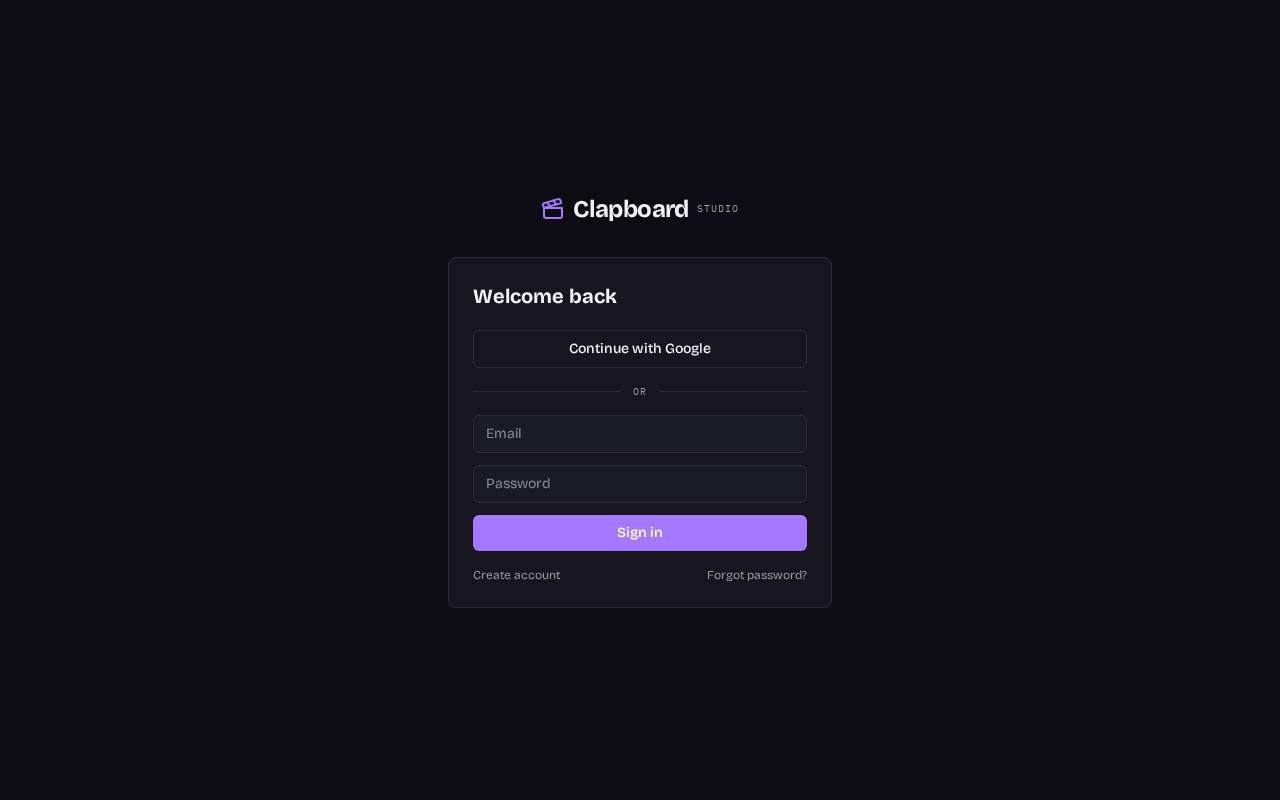
- Go to the sign-in page and choose Continue with Google, or enter your email and a password.
- New here? Switch to Create account, then confirm your email.
- Pick your role, and you'll land on the production board.
What is Clapboard?
A production workspace for creators and teams that takes content from raw idea to published — long video, shorts, blogs and podcasts.
How do I sign in?
Use email and password or Continue with Google on the sign-in page. Forgot your password? Use the reset link on the sign-in page.
Does my work save automatically?
Yes. Every change saves to your account within a second or two. The indicator in the top bar shows Saving, Saved, or an error if you're offline.
Can I use it on multiple devices?
Yes. Sign in anywhere and your workspace is the same.
Ideas & inbox
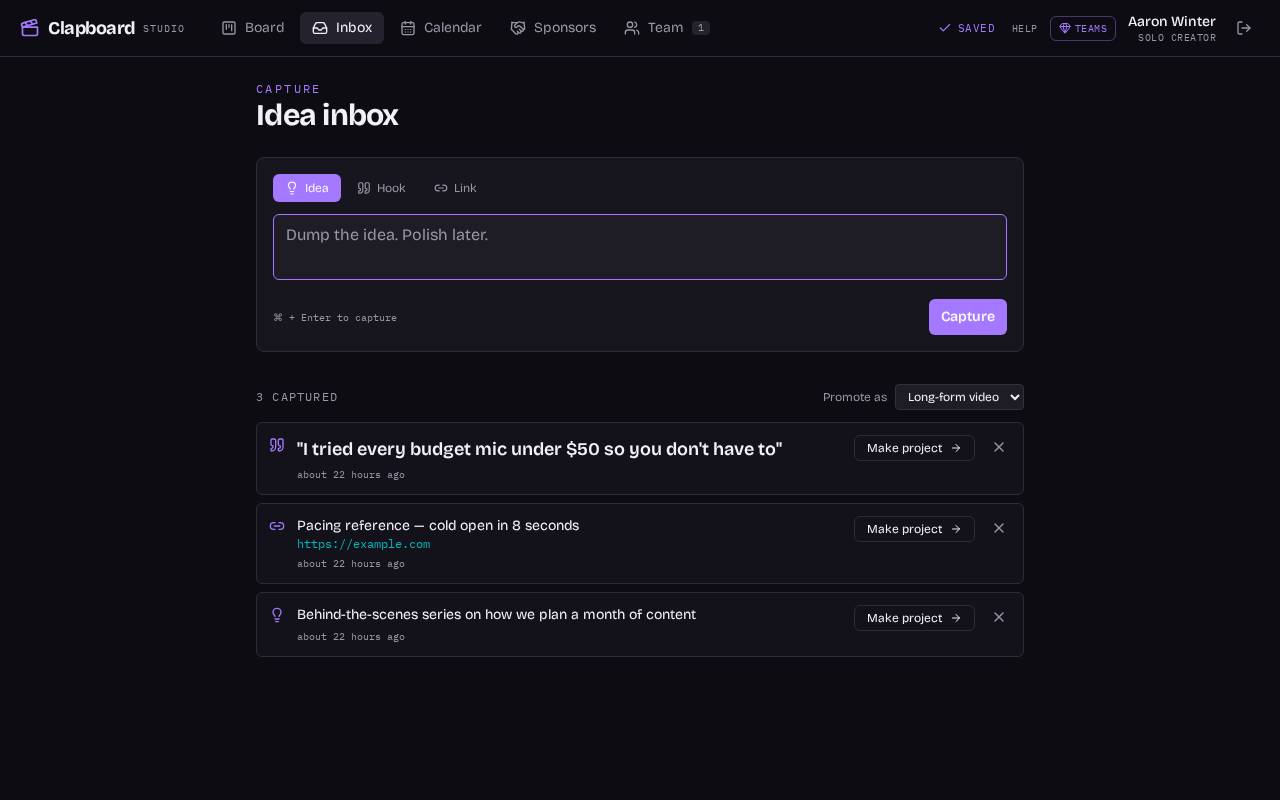
- Click Inbox in the top bar.
- Type your idea, then add links, hooks and the type of content.
- Press Promote to turn it into a project on the board.
How do I capture an idea?
Open Inbox, type the idea, add links, hooks or notes, and pick the type of content. Ideas stay there until you promote them.
How do I turn an idea into a project?
Click Promote on the idea. It becomes a project card in the Idea Inbox column of the board.
Production board
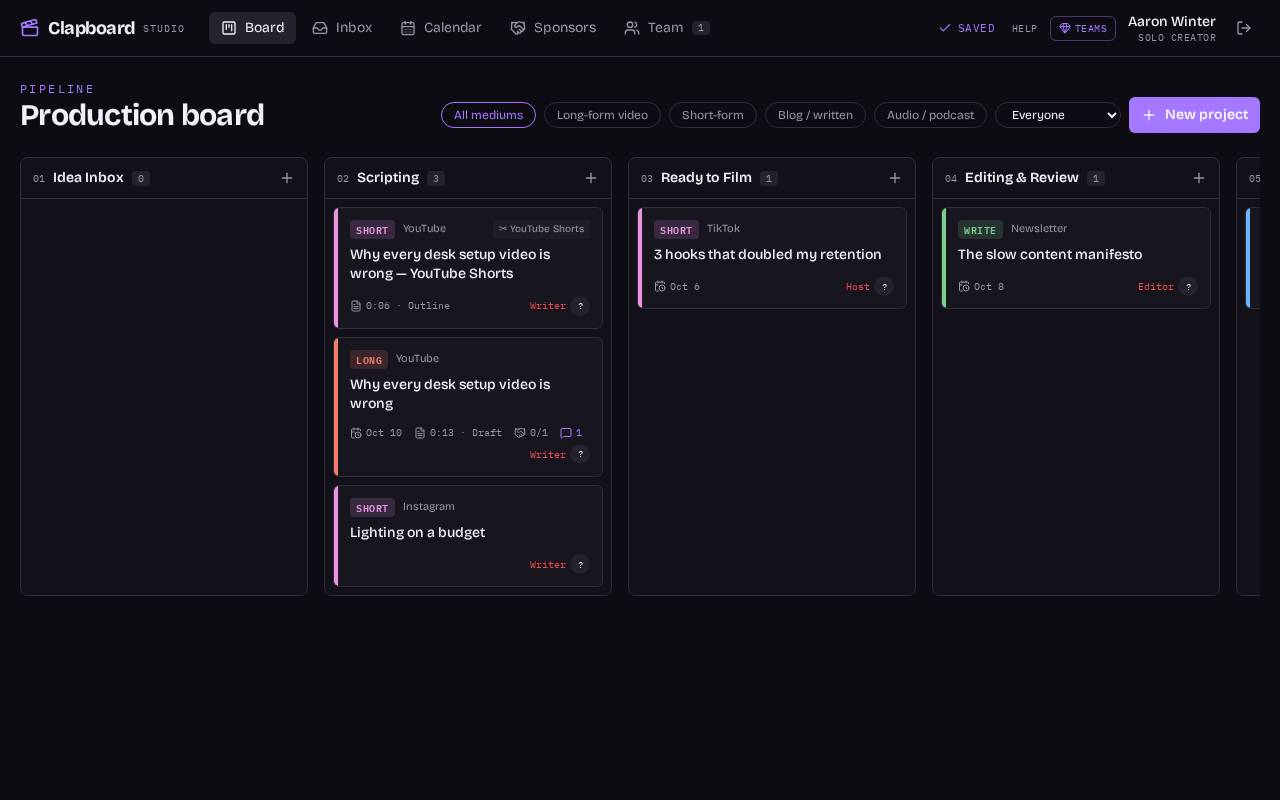
- Click Board in the top bar.
- Use + New project, or the + at the top of any column.
- Drag a card to the next column as work moves forward. Click a card to open it.
How does the board work?
Columns follow your pipeline: Idea Inbox, Scripting, Ready to Film, Editing & Review, Scheduled, Published. Drag cards between columns as work moves forward.
What do the badges on cards mean?
They show the content type, target date, asset count, who's assigned, and the platform for spin-off posts.
How do I hand work to a teammate?
Open the project and assign people to roles (writer, editor, etc.). The card shows who owns the next step.
Script Studio
- Open a project — it starts on the Script studio tab.
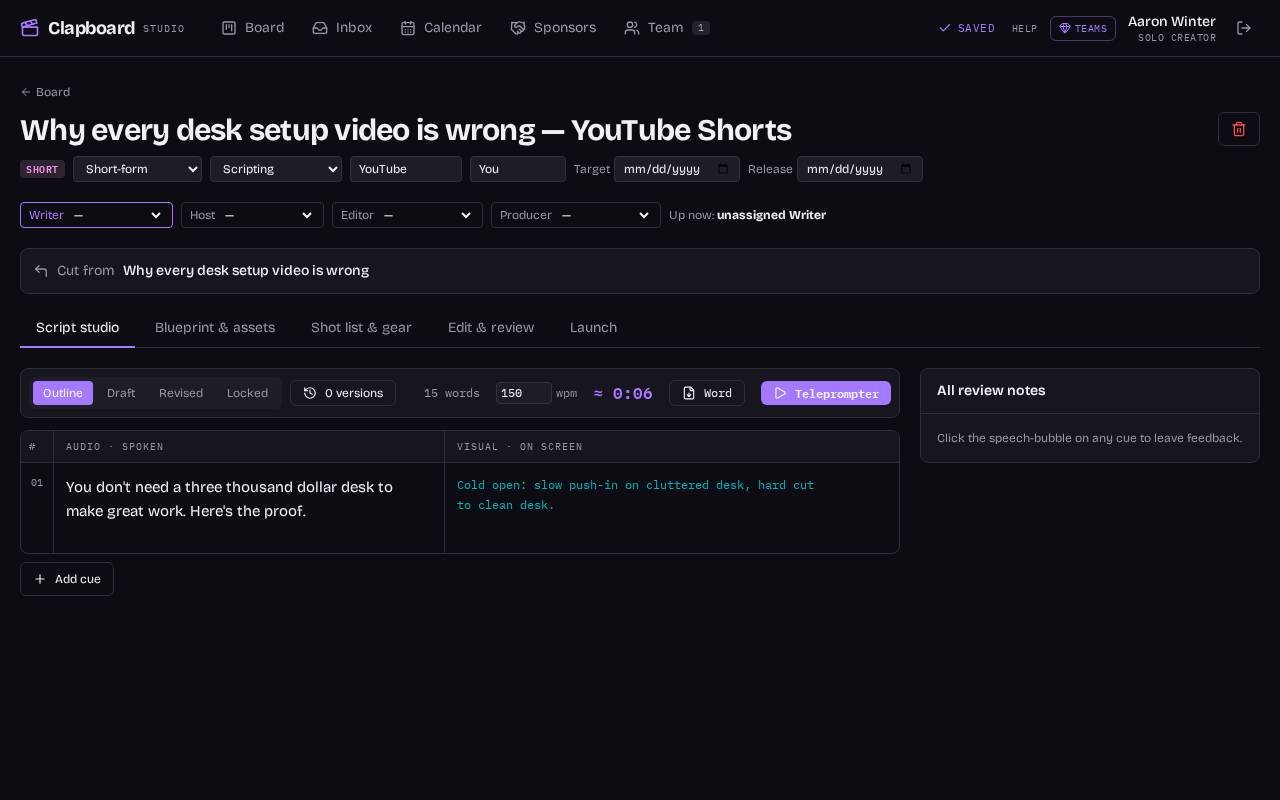
- Type what's said on the left (Audio) and what's shown on the right (Visual). Use Add line for more.
- Pick Outline, Draft, Revised or Locked to mark progress; Versions saves snapshots.
- Click Teleprompter to read, or Word to export. Click the speech bubble on a line to leave a note.
How do I write a script?
Open a project and go to the Script tab. Each line has an Audio side (what's said) and a Visual side (what's shown).
How is runtime estimated?
From the word count of your Audio lines at a normal speaking pace. It updates as you type.
How do I use the teleprompter?
Click Teleprompter in Script Studio. Adjust speed and text size; press space to pause.
What are Outline, Draft and Locked?
Milestones. Save a snapshot at each stage so you can look back or restore an earlier version.
How do review notes work?
Add a note to any script line. Teammates can reply, and notes can be marked resolved.
Can I export my script?
Yes — Export to Word creates a document with the script table and linked assets.
Packaging, assets & shot lists
- Open the Blueprint & assets tab to plan titles, thumbnails and sponsor deliverables.
- Use the Feed Simulator to compare two title/thumbnail versions, then apply the winner.
- Paste Drive or OneDrive links under Linked assets, or connect Google Drive to upload.
- Open Shot list & gear to see shots built from your Visual lines; check them off and print.
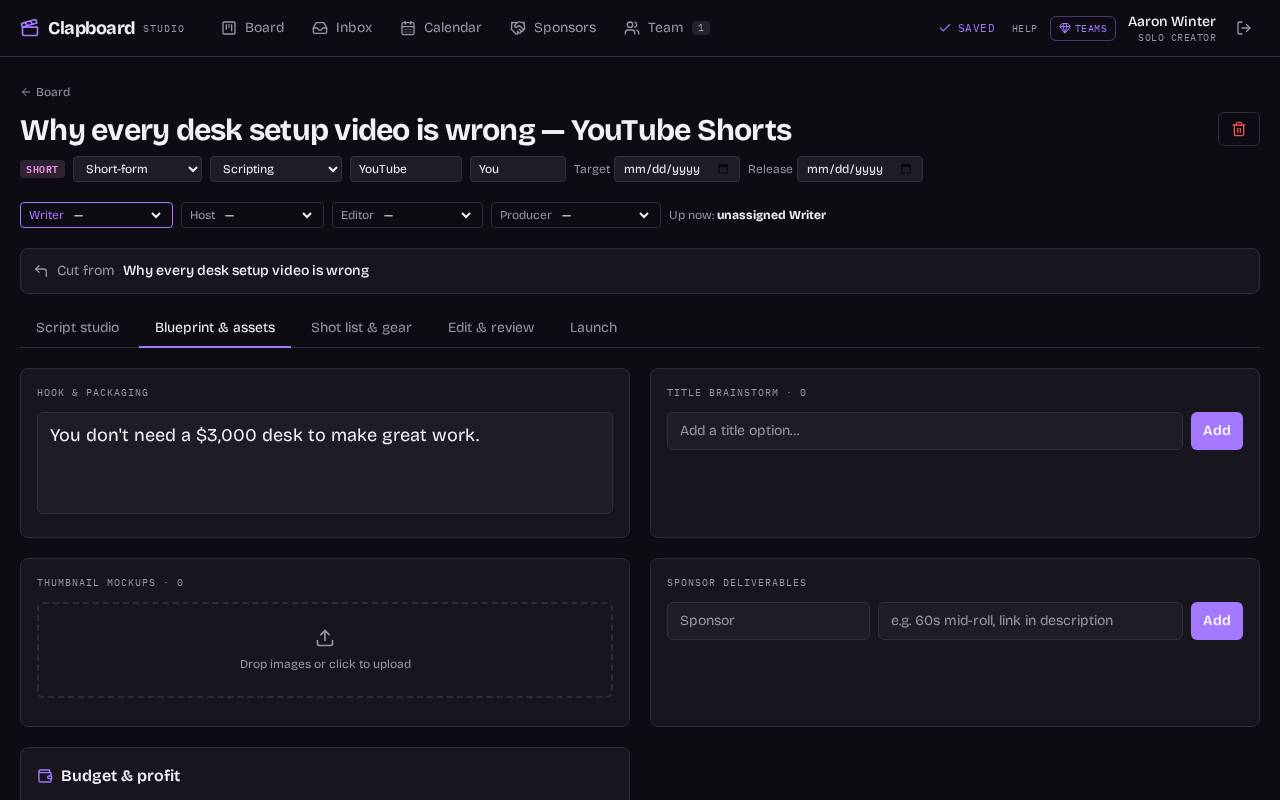
How do I test titles and thumbnails?
On the Blueprint & assets tab, use the Feed Simulator to preview two versions on desktop, mobile, search and Shorts, in light or dark mode.
How do I link files from Google Drive or OneDrive?
Paste a share link in Linked Assets and attach it to the project or a specific script line. On Solo and up you can also connect your Google Drive and upload directly.
What's the shot list?
Clapboard reads your Visual lines and builds a shot list and gear packout. Edit shots, check them off on set, and print a run-of-show.
Calendar, launch & spin-offs
- Click Calendar in the top bar.
- Drag a project onto a release date, or mark a day for batch filming.
- In a project, open the Launch tab to copy chapters, a description and run the checklist.
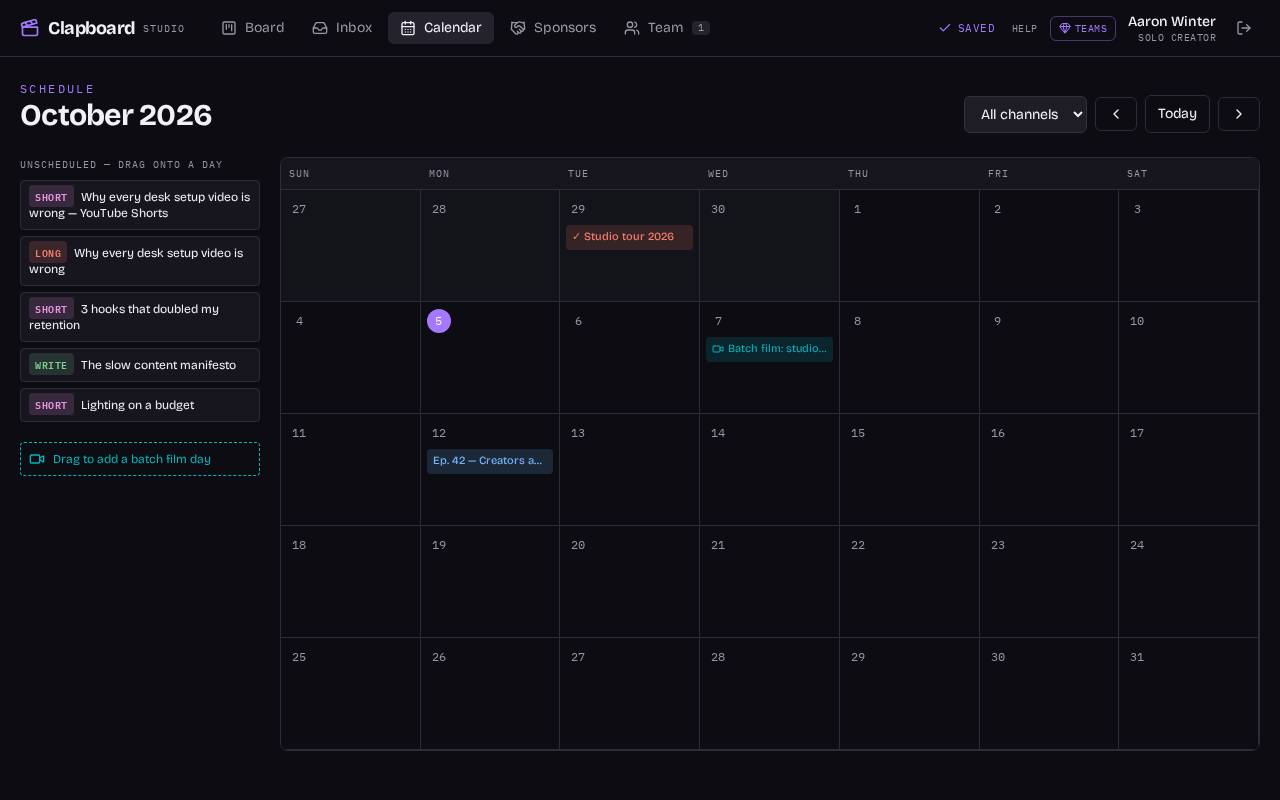
How do I schedule a release?
Open Calendar and drag a project onto a date. You can also mark batch-filming days.
What is Launchpad?
It builds chapter timestamps and a description from your script, plus a pre-publish checklist.
How do I make Shorts from a long video?
In Script Studio, tick the lines you want and choose Spin off. Clapboard creates linked child projects for Shorts, Reels, posts or newsletters (Solo and up).
Teams & collaboration
- Click Team in the top bar.
- Enter a teammate's email, pick their role, and click Create invite.
- Send them the copied link. They sign in with that email and join your studio.
- In a project, open Edit & review to leave timestamped notes on a video cut.
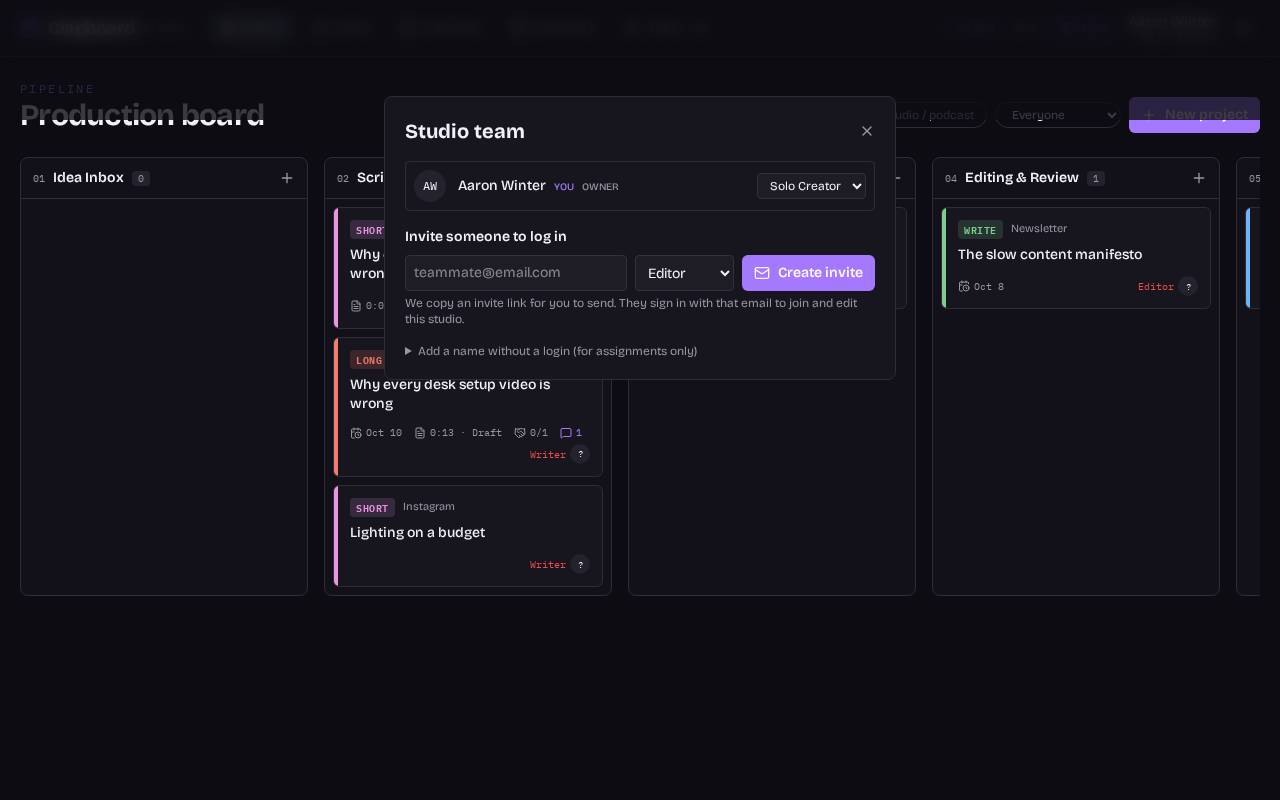
How do I invite my team?
Click Team in the top bar, enter their email, and send them the invite link. They sign in and join your studio (Teams and Studio plans).
Can two people edit at once?
Yes, changes appear live. If two people edit the exact same field at the same moment, the last save wins.
How do I review a video cut?
Open the Cut Review tab, add a video link or file, and leave notes at exact timestamps linked to script lines.
How do I switch between studios?
Use the studio switcher in the top bar if you belong to more than one.
Sponsors & money
- Click Sponsors in the top bar.
- Add a deal with the brand, amount and due date, and link it to projects.
- Move it through each stage until Paid. Due and overdue deals show at the top.
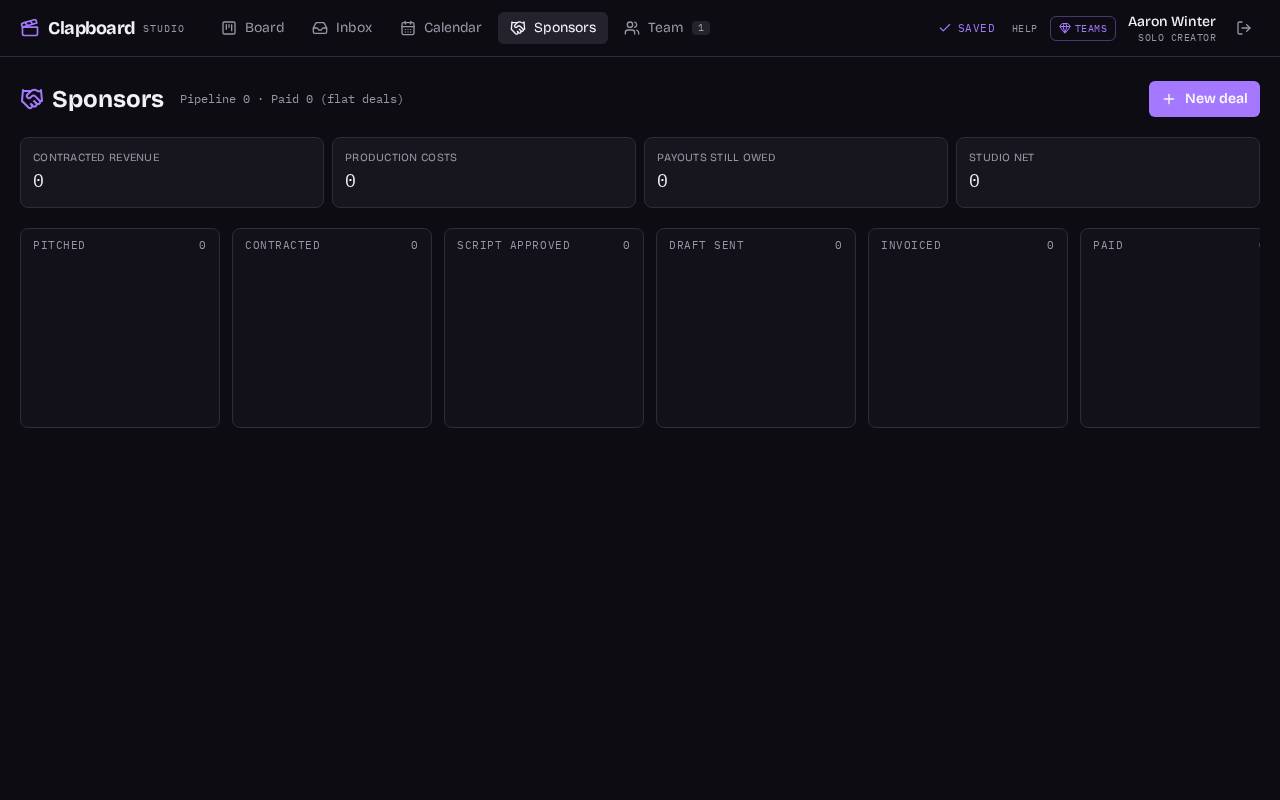
How do I track sponsor deals?
Open Sponsors and move deals through Pitched, Contracted, Script Approved, Draft Sent, Invoiced and Paid. Link deals to projects.
Will I get reminders?
Yes, inside the app: the Sponsors tab shows a count of due and overdue deals, and you get a daily heads-up when you open Clapboard.
How do budgets work?
Add expenses on a project. Clapboard shows revenue, cost, net and margin, with studio totals on the Sponsors page.
Plans & billing
- Click the plan badge next to your name.
- Choose Monthly or Yearly to compare prices.
- Pick the plan that fits your team.
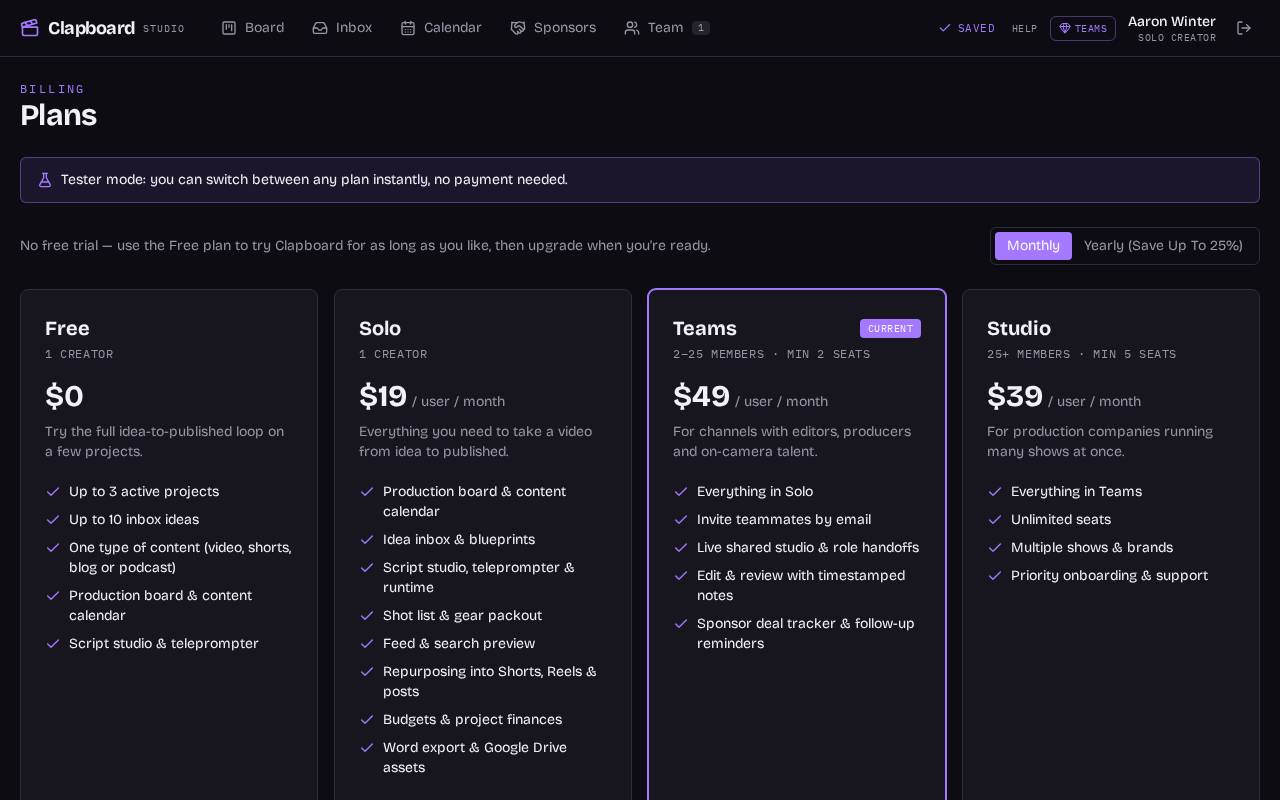
Is there a free trial?
No free trial — instead there's a Free plan you can use as long as you like to test Clapboard.
What does Free include?
Up to 3 active projects, 10 inbox ideas and one type of content, with the script studio, board and calendar.
How are paid plans priced?
Per user per month: Solo $19, Teams $49 (2–25 users, minimum 2), Studio $39 (25+, minimum 5).
Are there yearly options?
Yes. Paying yearly saves 5% on Solo, 10% on Teams and 25% on Studio.
What happens if I go over Free limits?
You'll see a prompt to upgrade. Nothing you've made is deleted.
How do I downgrade?
Click the plan badge next to your name (or Account → Upgrade or downgrade), then choose the lower plan. Before it switches, Clapboard lists anything in your workspace that's over the new plan's limits so you can cancel or continue.
What will I see if I'm over the limits after downgrading?
A red notice at the top of every page lists exactly what's over, with counts — for example: "5 active projects — Free allows 3", "14 inbox ideas — Free allows 10", "2 types of content in use (long, short)", "3 teammates with a login — Solo is 1 seat", "4 sponsor deals — the Sponsors page is locked", or linked files, budgets, spin-offs and video review notes that are now hidden. Nothing is deleted: locked items are kept safe and come back when you upgrade. To clear the notice, publish or delete extra projects and ideas, or remove teammates.
Account & privacy
Who can see my workspace?
Only you and people you invite to your studio.
How do I change my password, email or name?
Click Account in the top bar. Each has its own section.
How do I add or remove people from my workspace?
Workspace owners: go to Account → Workspace members (or click Team). Invite by email, change roles, revoke pending invites, or click the bin icon to remove someone's access. Requires Teams or Studio.
How do I delete my account?
Go to Account → Delete account, type DELETE and confirm. If you own a workspace, this deletes the entire workspace (all projects, scripts, ideas and sponsor deals) and removes every member's access; they keep their own accounts. It can't be undone.
How do I send feedback?
Click Feedback in the top bar, pick Bug, Idea, Love it or Other, and send.
Where's the privacy policy?
See the Privacy Policy page linked below.
Where are the Terms of Service?
See Terms of Service below for account responsibilities, workspace ownership, subscriptions, cancellation and content rights.